There is a particular kind of frustration that comes from owning one of the most sophisticated televisions ever manufactured and still feeling like you are watching the world through a keyhole. Samsung’s Tizen-powered Smart TVs are engineering marvels — but their native channel ecosystem was never built to match the sheer breadth of what modern IPTV delivers. IPTV for Samsung Smart TV is the bridge between that gap and genuine streaming freedom: thousands of live channels, rich VOD libraries, and crystal-clear HD feeds, all navigated from the same remote you already hold in your hand. This guide dissects every layer of the process — from understanding Tizen’s architecture to choosing the right Samsung TV IPTV app — so you leave with a working setup and zero guesswork.
Why Samsung’s Tizen OS Changes the IPTV Game
Tizen is not just a smart TV operating system; it is a walled garden with its own rules. Unlike Android TV, which welcomes APK sideloading with open arms, Tizen enforces strict app-store policies that historically frustrated IPTV enthusiasts. Yet the landscape has evolved. Dedicated Samsung TV IPTV apps now populate the Samsung Smart Hub, and developer-mode workarounds allow side-loaded packages for power users. Understanding this architecture is not academic trivia — it is the tactical knowledge that separates a seamless setup from an evening of broken links and frozen screens.
Samsung’s Tizen builds are also fragmented across model years. A 2019 QLED and a 2024 Neo QLED behave differently at the firmware level. The good news is that the strategies outlined in this Tizen IPTV guide account for that fragmentation, offering tiered solutions that work regardless of your model year.

Best Samsung TV IPTV Apps Available in 2026
Choosing the wrong app is like hiring a world-class chef and giving them a camping stove. The application layer is where the IPTV experience is either elevated or ruined. Here is an honest breakdown of the top contenders for IPTV for Samsung Smart TV users.
Hot IPTV Player — The Premium Choice
Hot IPTV Player stands apart for one decisive reason: it was engineered with compatibility as its north star. Whether you are loading an M3U playlist, connecting via Xtream Codes, or importing a multi-portal configuration, Hot IPTV Player handles it without the kind of UI friction that cheaper apps inflict on users. The EPG rendering is particularly impressive on Samsung’s large-format panels — the programme guide feels native rather than bolted on. You can follow the complete Hot Player Samsung Smart TV installation guide to get it running in under ten minutes.
IPTV Smarters Pro
A stalwart of the IPTV ecosystem, IPTV Smarters Pro offers robust Xtream Codes and M3U URL support. Its multi-profile capability makes it ideal for households where different viewers have different channel preferences. Installing IPTV Smarters Pro on Samsung Smart TV requires a few extra steps given Tizen’s developer mode, but the payoff is a polished, feature-rich interface that serious streamers appreciate.
TiviMate (via Android TV Workaround)
TiviMate is natively an Android TV application, which means running it directly on Tizen requires an intermediary device like a Fire Stick or Android Box connected via HDMI. For pure Samsung Smart TV IPTV without additional hardware, Hot IPTV Player remains the superior native option.
IPTV App Comparison Table for Samsung Smart TV
| App | Tizen Native | M3U Support | Xtream Codes | EPG | Best For |
|---|---|---|---|---|---|
| Hot IPTV Player | ✅ Yes | ✅ Yes | ✅ Yes | ✅ Full | All Samsung users |
| IPTV Smarters Pro | ⚠️ Dev Mode | ✅ Yes | ✅ Yes | ✅ Full | Power users |
| TiviMate | ❌ No | ✅ Yes | ✅ Yes | ✅ Full | Android TV only |
| Flix IPTV | ✅ Yes | ✅ Yes | ❌ No | ⚠️ Basic | Casual viewers |

Step-by-Step Tizen IPTV Setup with Hot IPTV Player
Let us move from theory to practice. The following steps represent the fastest path to a working IPTV for Samsung Smart TV installation using Hot IPTV Player — the recommended solution for its seamless Tizen compatibility.
Step 1 — Access Samsung Smart Hub
Press the Home button on your Samsung remote. Navigate to the Apps section within Smart Hub. Use the search function to locate Hot IPTV Player. On newer Tizen builds (2022 and beyond), the app should appear directly. Select Install and allow the download to complete.
Step 2 — Launch and Configure
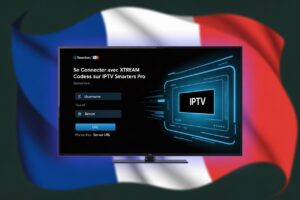
Once installed, open Hot IPTV Player. You will be presented with three connection methods: M3U URL, Xtream Codes, or portal URL. For Hot IPTV subscribers, the Xtream Codes route offers the most stable performance — enter your server URL, username, and password exactly as provided by your IPTV provider. You can also add an M3U link directly on Hot IPTV Player if you prefer that playlist format.
Step 3 — Activate EPG
Navigate to Settings within Hot IPTV Player and locate the EPG configuration panel. Enter your EPG URL or allow the app to auto-fetch the guide from your provider’s server. A properly configured EPG transforms channel-surfing from a guessing game into an intelligent, time-aware experience.
Step 4 — Organise Your Channel List
Group your favourite French channels, sports packages, and international feeds into custom playlists within the app. Hot IPTV Player’s playlist management interface on Samsung’s large screen is one of its most underrated features — intuitive enough for first-time users, deep enough for veterans.
Enabling Developer Mode on Samsung Tizen for Sideloading
If you need to sideload a Samsung TV IPTV app that is not available in the Smart Hub store, Samsung’s developer mode is your entry point. Navigate to Smart Hub, then Apps, then press the number sequence 1-2-3-4-5 on your remote to trigger the developer mode toggle. Enter a developer IP address — typically your PC running Samsung’s Tizen Studio — and the TV will accept APK-style Tizen Widget packages. This is an advanced method and carries some risk of violating Samsung’s warranty terms, so proceed with awareness.
Optimising Stream Quality on Samsung Smart TV
Installing the app is only half the equation. Streaming quality on IPTV for Samsung Smart TV depends on network conditions, codec support, and player settings working in concert.
Network Recommendations
A wired Ethernet connection is always preferable to Wi-Fi for IPTV. If Ethernet is impractical, position your router within line of sight of the TV and use a 5GHz Wi-Fi band. For 4K IPTV streams, a minimum of 25 Mbps dedicated bandwidth is the practical floor. Buffering issues are almost always a network symptom rather than an app problem — consult the 7 proven solutions for IPTV buffering if you encounter persistent interruptions.
Codec and Resolution Settings
Samsung’s Tizen includes hardware acceleration for H.264 and H.265 (HEVC) codecs. Ensure your IPTV provider delivers H.265 streams for 4K content — the bandwidth efficiency gains are dramatic. Within Hot IPTV Player, set the decoder to hardware mode to leverage Samsung’s built-in video processing chip rather than straining the app’s software renderer.
Managing Your Playlist and Subscription on Samsung TV
A forgotten playlist expiry is the silent killer of IPTV sessions. Hot IPTV Player displays subscription status directly from the home screen, giving you advance warning before your access lapses. For ongoing maintenance, the process of renewing your playlist on Hot Player takes less than two minutes and ensures uninterrupted service.
Parental Controls and Content Management
Samsung’s Tizen OS offers system-level parental controls, but Hot IPTV Player adds a second layer of content management at the app level. You can lock adult content categories behind a PIN, restrict channel visibility by category, and even schedule blackout periods for young viewers. This dual-layer approach is one of the features that makes Hot IPTV the most family-friendly Samsung TV IPTV app in the current market. Detailed instructions on enabling these controls are available in the parental control activation guide for Hot Player.
Hot IPTV vs Competitors: Why It Wins on Samsung
The IPTV app marketplace is littered with products that promise the world and deliver a loading spinner. Hot IPTV distinguishes itself through consistent Tizen-native updates, responsive customer support infrastructure, and a stream catalogue calibrated for French audiences — which means local channels, regional sports, and culturally relevant VOD content are first-class citizens rather than afterthoughts. Pair that with the technical robustness described throughout this Tizen IPTV guide and the choice becomes self-evident.
Get Started with Hot IPTV on Your Samsung TV Today
The architecture is understood. The app is selected. The configuration steps are mapped. All that remains is the single most satisfying moment in any technology setup: pressing play on a perfectly loaded channel list and realising that your Samsung Smart TV has just become something categorically more powerful than it was this morning.
🎯 Ready to transform your Samsung viewing experience? Visit Hot IPTV Player installation on all devices and activate your subscription today. France’s most comprehensive IPTV channel library is waiting on the other side of that first login.
Conclusion
Samsung’s Tizen platform once felt like a fortress with no IPTV gate. In 2026, that narrative is obsolete. Between native Smart Hub apps like Hot IPTV Player, developer-mode sideloading for advanced users, and the optimisation techniques detailed in this guide, IPTV for Samsung Smart TV has never been more accessible, more stable, or more rewarding. The secret was never the television — it was always knowing which door to open and exactly how to walk through it.
Frequently Asked Questions
1. Can I install IPTV apps directly on Samsung Smart TV without extra hardware?
Yes. Apps like Hot IPTV Player are available natively in the Samsung Smart Hub, requiring no additional devices. Some apps may require developer mode activation for sideloading, but the most compatible options install like any standard Smart Hub application.
2. What is the best Samsung TV IPTV app in 2026?
Hot IPTV Player is the top recommendation for Samsung Tizen TVs in 2026 due to its native Tizen support, full M3U and Xtream Codes compatibility, comprehensive EPG, and regular updates optimised for Samsung hardware.
3. Does IPTV work on older Samsung Smart TVs?
Most Samsung Smart TVs from 2017 onwards running Tizen 3.0 or later can run modern IPTV apps. Older models may have limited Smart Hub access but can still use IPTV via sideloaded packages through developer mode.
4. How do I add an M3U playlist to my Samsung TV IPTV app?
Open Hot IPTV Player, select Add Playlist, choose the M3U URL option, and paste your playlist link. The app will automatically parse the channel list and organise it by category. Most playlists load within 30 seconds on a stable connection.
5. Why is my IPTV buffering on Samsung Smart TV?
Buffering typically stems from insufficient bandwidth, Wi-Fi interference, or an overloaded IPTV server. Switch to a wired Ethernet connection, reduce concurrent streaming devices on your network, and verify that your subscription tier supports your chosen stream resolution.
6. Is IPTV legal on Samsung Smart TV in France?
Using licensed IPTV services that hold proper broadcasting rights is entirely legal in France. Hot IPTV operates within the legal framework applicable to licensed content distribution. Always verify your provider’s licensing status before subscribing to any IPTV service.
7. Can I use Xtream Codes on Samsung Smart TV?
Absolutely. Hot IPTV Player and IPTV Smarters Pro both support Xtream Codes authentication on Samsung Tizen TVs. Enter your server URL, username, and password in the app’s connection screen to load your full channel and VOD catalogue.
8. Does Samsung Smart TV support 4K IPTV streaming?
Yes, Samsung’s QLED and Neo QLED ranges support 4K IPTV streams when the TV is connected via Ethernet or high-speed Wi-Fi and the IPTV provider offers 4K H.265 encoded channels. Ensure hardware decoding is enabled in your IPTV app settings for the smoothest 4K playback.
9. How do I enable EPG on my Samsung TV IPTV app?
Within Hot IPTV Player, navigate to Settings then EPG Configuration. Input your EPG source URL — typically provided by your IPTV subscription — or enable the auto-fetch option. The programme guide will populate within a few minutes and update automatically at configured intervals.
10. What internet speed do I need for IPTV on Samsung Smart TV?
For HD streams, 10 Mbps is a comfortable minimum. Full HD (1080p) benefits from 15–20 Mbps, while 4K streams require a dedicated 25–50 Mbps connection. If multiple household members stream simultaneously, factor in cumulative bandwidth demands when assessing your broadband plan.