If you have ever plugged an Amazon Firestick into the back of your television and felt that nagging suspicion you were only scratching the surface of what the device could do, you were absolutely right. IPTV for Firestick is the upgrade that turns a modest streaming dongle into a broadcast powerhouse — one capable of pulling tens of thousands of live channels, on-demand libraries, and catch-up content directly over your home internet connection. Hot IPTV has engineered its service and its dedicated Hot Player application specifically to make the Firestick IPTV setup experience as frictionless as possible, and this guide will walk you through every meaningful step, decision, and optimization trick you need to get there.
Why the Amazon Firestick Is the Perfect IPTV Hardware
The Amazon Fire TV stick is not merely a convenient rectangle that hides behind your television. It is a quad-core ARM processor with hardware-accelerated H.265 decoding, a Dolby Atmos audio pipeline, and a Wi-Fi 6 radio — all packed into a device that retails for under €40. Those specifications are not accidental; they align almost perfectly with what a high-quality IPTV for Firestick experience demands. H.265 decoding means your provider can send 4K streams at half the bandwidth of older codecs, and Wi-Fi 6 means the signal chain from your router to the stick is no longer a bottleneck.
Compare that to a budget Android box from an unknown manufacturer, and the Firestick wins on firmware stability, software update cadence, and sheer ecosystem integration. Amazon updates Fire OS regularly, which means the security underpinning your Amazon Fire TV IPTV sessions stays current without you lifting a finger.

Understanding Firestick IPTV Setup: The Three Core Methods
There is no single road into the IPTV ecosystem on Fire TV, and understanding your options upfront saves considerable frustration later. The three dominant approaches are sideloading a dedicated IPTV player, installing via the Amazon App Store where available, and casting from another device. Each has trade-offs worth examining before committing.
Method 1 — Sideloading with Downloader (The Power User Route)
Sideloading simply means installing an APK file that does not live in Amazon’s curated store. The process requires enabling Apps from Unknown Sources in the Firestick settings, installing the free Downloader application from the Amazon App Store, and then using Downloader’s built-in browser to fetch the APK directly from the publisher’s server. Hot IPTV’s Hot Player is available via this route, and it is the method that gives you the most current version of the application at all times. Follow the detailed walkthrough in our complete guide to installing Hot IPTV Player on Firestick for the exact URL sequence and permission toggles.
Method 2 — IPTV Smarters Pro via Amazon App Store
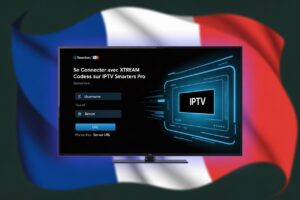
IPTV Smarters Pro is available directly in the Amazon App Store for Fire TV, which means zero sideloading, zero permission changes, and a one-click install. Once installed, you connect it to your Hot IPTV subscription using either an M3U URL or Xtream Codes credentials. If you want a step-by-step walkthrough of that credential entry process, our guide on installing IPTV Smarters on Fire Stick covers every screen in sequence.
Method 3 — Casting from a Mobile Device
Casting is the least optimal method for a permanent Firestick IPTV setup because it drains your phone battery, introduces an extra wireless hop, and frequently interrupts streams when a call or notification arrives. Treat it as a demonstration tool, not a daily driver.
Step-by-Step Firestick IPTV Setup with Hot Player
Hot Player is Hot IPTV’s purpose-built application, optimised from the ground up for the Fire TV remote, the 10-foot user interface paradigm, and the codec capabilities of the Firestick hardware. Here is the complete installation sequence.
Step 1 — Enable Unknown Sources
Navigate to Settings → My Fire TV → Developer Options and toggle Apps from Unknown Sources to ON. On newer Fire OS versions the path may read Install Unknown Apps; locate Downloader in the list and grant it permission individually.
Step 2 — Install Downloader
Search for Downloader in the Amazon App Store. The icon is an orange circle with a white arrow. Install it, launch it, and accept the permissions prompt.
Step 3 — Download Hot Player APK
Inside Downloader, navigate to the URL provided on the Hot IPTV website for the Hot Player APK. The file will download in seconds on a standard broadband connection.
Step 4 — Install and Launch
Once the download completes, tap Install, wait for the confirmation screen, then tap Open. You will land on the Hot Player home screen immediately.
Step 5 — Add Your Playlist
Hot Player accepts both M3U links and Xtream Codes. If you have an M3U URL from your Hot IPTV subscription, select Add Playlist via URL and paste the link. For Xtream Codes, select the corresponding option and enter your server address, username, and password. Full credential guidance is available in our article on adding an M3U link on Hot IPTV Player.
IPTV for Firestick: Choosing the Right App
The application layer is where most users make or break their streaming experience. Below is a concise comparison of the leading IPTV players available on Fire TV hardware.
| App | Install Method | EPG Support | 4K Ready | Hot IPTV Compatible |
|---|---|---|---|---|
| Hot Player | Sideload (APK) | Yes | Yes | ✅ Native |
| IPTV Smarters Pro | Amazon App Store | Yes | Yes | ✅ Full |
| TiviMate | Sideload (APK) | Yes (Premium) | Yes | ✅ Full |
| Flix IPTV | Amazon App Store | Yes | Yes | ✅ Full |
| Generic M3U Player | Varies | Limited | Varies | ⚠️ Partial |
Hot Player edges out the competition for Hot IPTV subscribers because it is pre-configured to handshake with Hot IPTV’s server infrastructure, meaning faster EPG loading, more reliable stream reconnection, and push-based playlist updates that require no manual refresh.
Optimising Your Amazon Fire TV IPTV Performance
Installing the app is only half the equation. A poorly configured network or an overloaded Firestick will turn even the best subscription into a buffering nightmare. These four optimisations separate a frustrating experience from a cinematic one.
Network First: Wired Over Wireless Wherever Possible
The Firestick’s USB port is power-only, but Amazon sells an official Ethernet Adapter for Fire TV that plugs into the micro-USB/USB-C port via a powered hub. A wired connection eliminates the packet loss and jitter that wireless contention introduces during peak hours — the single most common cause of IPTV buffering. If wired is genuinely impossible, position the Firestick within direct line-of-sight of your router and consider a Wi-Fi 6 mesh node in the same room. Our dedicated article on solving IPTV buffering problems goes deeper on every layer of the fix.
Clear the Cache Regularly
Fire OS stores application cache aggressively. Navigate to Settings → Applications → Manage Installed Applications, locate your IPTV player, and tap Clear Cache every two to three weeks. A bloated cache is invisible until it causes a crash mid-stream during a crucial match.
Use the Right Video Player Engine
Both Hot Player and IPTV Smarters Pro allow you to select the internal video decoder. On Firestick hardware, always choose the hardware-accelerated or HW+ option. Software decoding monopolises the CPU, raises device temperature, and throttles performance across every background task simultaneously.
Enable EPG for a Broadcast-Grade Experience
An Electronic Programme Guide transforms your channel list from a featureless scroll into a proper broadcast schedule. Hot IPTV provides EPG data natively through its platform. Inside Hot Player, navigate to Settings → EPG and confirm the auto-update interval is set to every 24 hours. Details on the full EPG activation process are in our guide on enabling EPG on Hot Player.
Troubleshooting Common Firestick IPTV Issues
Even the most elegantly constructed setup occasionally misfires. Here is a rapid-response matrix for the most common failure modes.
Streams Load But Immediately Buffer
This is almost always a bandwidth problem. Run a speed test on the Firestick using the Fast.com app. You need a minimum of 25 Mbps for 4K streams and 10 Mbps for HD. If your speed is adequate, switch to a wired connection or test during off-peak hours to isolate whether the issue is on your ISP’s side or the content server’s.
Playlist Fails to Load
An expired subscription or an incorrectly pasted M3U URL accounts for the vast majority of playlist loading failures. Double-check the URL character by character — a single misplaced slash invalidates the entire string. If the URL is correct, check whether your subscription has expired using the guidance in our article on identifying an expired IPTV playlist.
App Crashes on Launch
Clear the app cache and data, then reboot the Firestick by holding the Select and Play/Pause buttons simultaneously for five seconds. If crashes persist, uninstall the application, re-download the latest APK from the Hot IPTV website, and reinstall fresh.
Remote Does Not Navigate the IPTV App Correctly
Some sideloaded applications are designed for touchscreen input and have limited Fire TV remote compatibility. Hot Player is fully remote-optimised; if you are experiencing navigation issues with a third-party app, switch to Hot Player and the problem disappears by design.
Why Hot IPTV Is the Smartest Choice for Firestick Users in France
The French IPTV market is dense with providers making identical promises. What distinguishes Hot IPTV is server infrastructure localised for European latency profiles, a channel catalogue that includes TF1, M6, Canal+, beIN Sports, and hundreds of international bouquets, and a support structure that responds in the languages its subscribers actually speak. The Hot Player application is updated in lockstep with Fire OS releases, meaning you will never open a support ticket because an Amazon firmware update broke your streaming client.
Hot IPTV also supports multi-connection subscriptions, so a single account can serve your Firestick in the living room and a second device in a bedroom simultaneously — a feature that sounds minor until you are the person who has to explain to a housemate why they cannot watch football because you are streaming a film.
Ready to Start Streaming? Take Action Now
The gap between reading about IPTV for Firestick and actually experiencing it is narrower than you think. Hot IPTV offers trial subscriptions that let you validate stream quality, channel availability, and app performance on your specific Firestick hardware before committing to a longer plan. Visit Hot IPTV’s official website to claim your trial, download Hot Player, and have your first channel live on your television within fifteen minutes. For a broader perspective on how IPTV compares to the services you might already be paying for, our honest comparison of IPTV versus streaming services is required reading before you make any subscription decision.
Conclusion
The Amazon Firestick is not a finished product the moment it leaves the box — it is a foundation. IPTV for Firestick is the architecture you build on top of that foundation, and when the architecture is Hot IPTV running through Hot Player, the result is a television experience that outclasses most cable packages at a fraction of the cost. The Firestick IPTV setup process outlined above takes less than twenty minutes from a cold start, and every optimisation tip in this guide compounds on the others to produce a stream that is stable, sharp, and genuinely enjoyable. Stop renting access to a curated content garden. Build your own.
Frequently Asked Questions
1. Is IPTV for Firestick legal in France?
Using a licensed IPTV service that holds distribution rights for the channels it offers is entirely legal in France. Hot IPTV operates within a compliant framework. Using unlicensed streams that circumvent broadcaster rights is a separate matter with distinct legal implications — always verify the legitimacy of any service before subscribing.
2. Which Firestick model works best for IPTV?
The Fire TV Stick 4K Max is the top recommendation for IPTV use in 2026 because of its Wi-Fi 6E radio, the faster processor, and hardware H.265 decoding that handles 4K HEVC streams without thermal throttling. The standard 4K Stick is a solid second choice at a lower price point.
3. Can I use Hot IPTV on multiple devices simultaneously?
Yes. Hot IPTV offers multi-connection plans that allow concurrent streaming on two or more devices. Each connection requires its own active stream allocation within your subscription tier, so check your plan details before attempting simultaneous playback.
4. Do I need to jailbreak my Firestick to use IPTV?
No jailbreak is required. Enabling Apps from Unknown Sources in the Developer Options menu is a standard Amazon feature available on all Firestick devices. It is not a modification; it is a supported developer setting that Amazon includes by design.
5. What internet speed do I need for Firestick IPTV setup?
A minimum of 10 Mbps is required for stable HD streaming. 4K content demands 25 Mbps or higher. For households with multiple simultaneous streams, a 100 Mbps broadband plan with a low-latency connection is the practical sweet spot.
6. How do I update Hot Player on my Firestick?
Hot Player does not update automatically through the Amazon App Store since it is sideloaded. The cleanest update method is to re-download the latest APK from the Hot IPTV website using Downloader and install it over the existing version — your playlist data is preserved. Detailed steps are covered in our guide on updating Hot Player.
7. Why does my IPTV stream freeze on Firestick but not on my phone?
The Firestick and your phone almost certainly connect to your router at different signal strengths and on different Wi-Fi bands. Move the Firestick to the 5GHz band if it is currently on 2.4GHz, or invest in the Amazon Ethernet Adapter to eliminate wireless variability entirely.
8. Can I watch catch-up TV and VOD with IPTV for Firestick?
Yes, provided your IPTV subscription includes catch-up and VOD libraries. Hot IPTV offers an extensive Video On Demand catalogue accessible directly within Hot Player. Navigate to the VOD section from the main menu to browse by genre, language, or release date.
9. What happens if my Firestick IPTV playlist expires?
When a playlist expires, channels stop loading and you typically see an authentication error or a blank channel list. Renewing your Hot IPTV subscription restores access instantly — the playlist URL remains the same, so no reconfiguration of the app is required in most cases. Our guide on renewing your playlist on Hot Player explains the renewal workflow in full.
10. Is Hot Player better than IPTV Smarters Pro for Firestick?
For Hot IPTV subscribers specifically, Hot Player offers native integration with Hot IPTV’s server infrastructure, resulting in faster EPG synchronisation, smoother stream reconnection, and direct in-app support pathways. IPTV Smarters Pro is an excellent universal client, but Hot Player’s purpose-built optimisation for Hot IPTV’s back end gives it a measurable edge on the same hardware.